

Documents
Every photo and PDF, filed by job.
Photos, PDFs and reports where the work is.
Job folders hold the evidence for each loss; location folders hold the shared files. Open any of it from the same place your team already works.
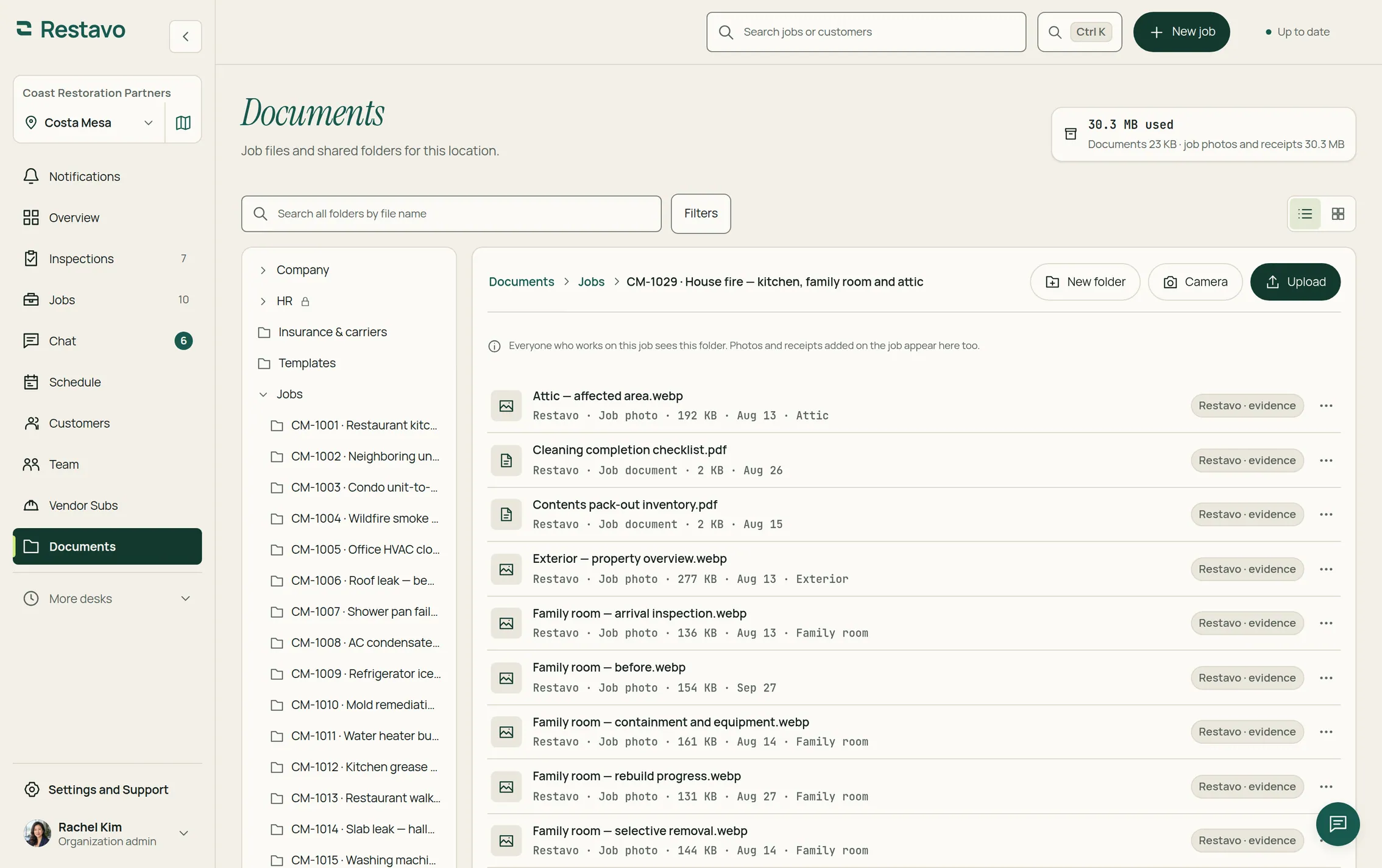
CM-1029 · fire job photos and documents
01Organize
A structure everyone recognizes.
A folder for every job.
Job folders sit inside the location's document drive, so company paperwork stays apart from the photos and reports for a single loss.


02Review
The actual photo or PDF, not a description of it.
Open the evidence before the next call.
Preview uploaded files right in Restavo. Keep drying logs and inspection reports with the job's other evidence.
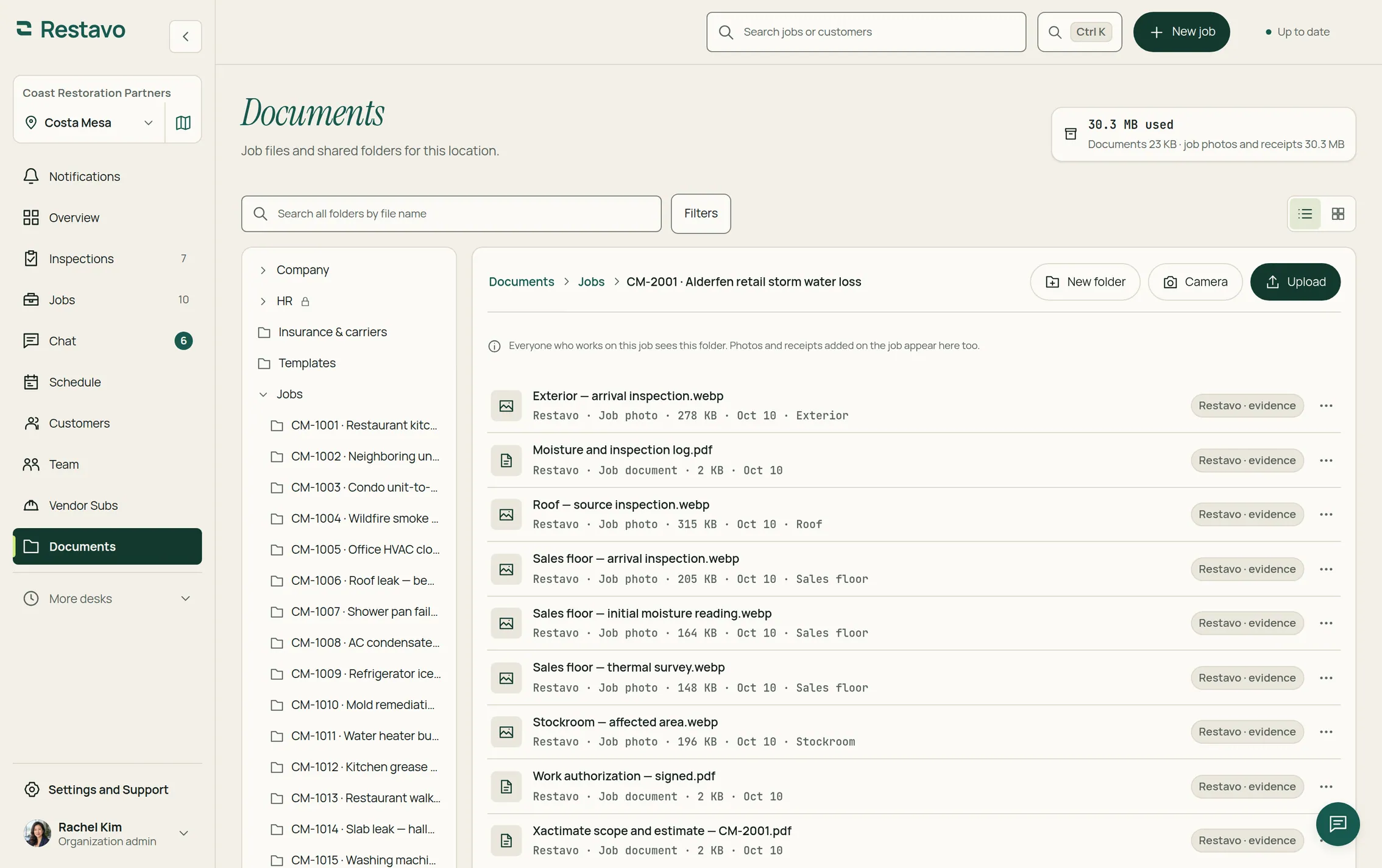
CM-2001 · arrival photos, moisture log and signed authorization
03Add
Upload from the device in hand.
Bring the record back from site.
Authorized team members upload job photos and PDFs from the phone, tablet or laptop they work on.
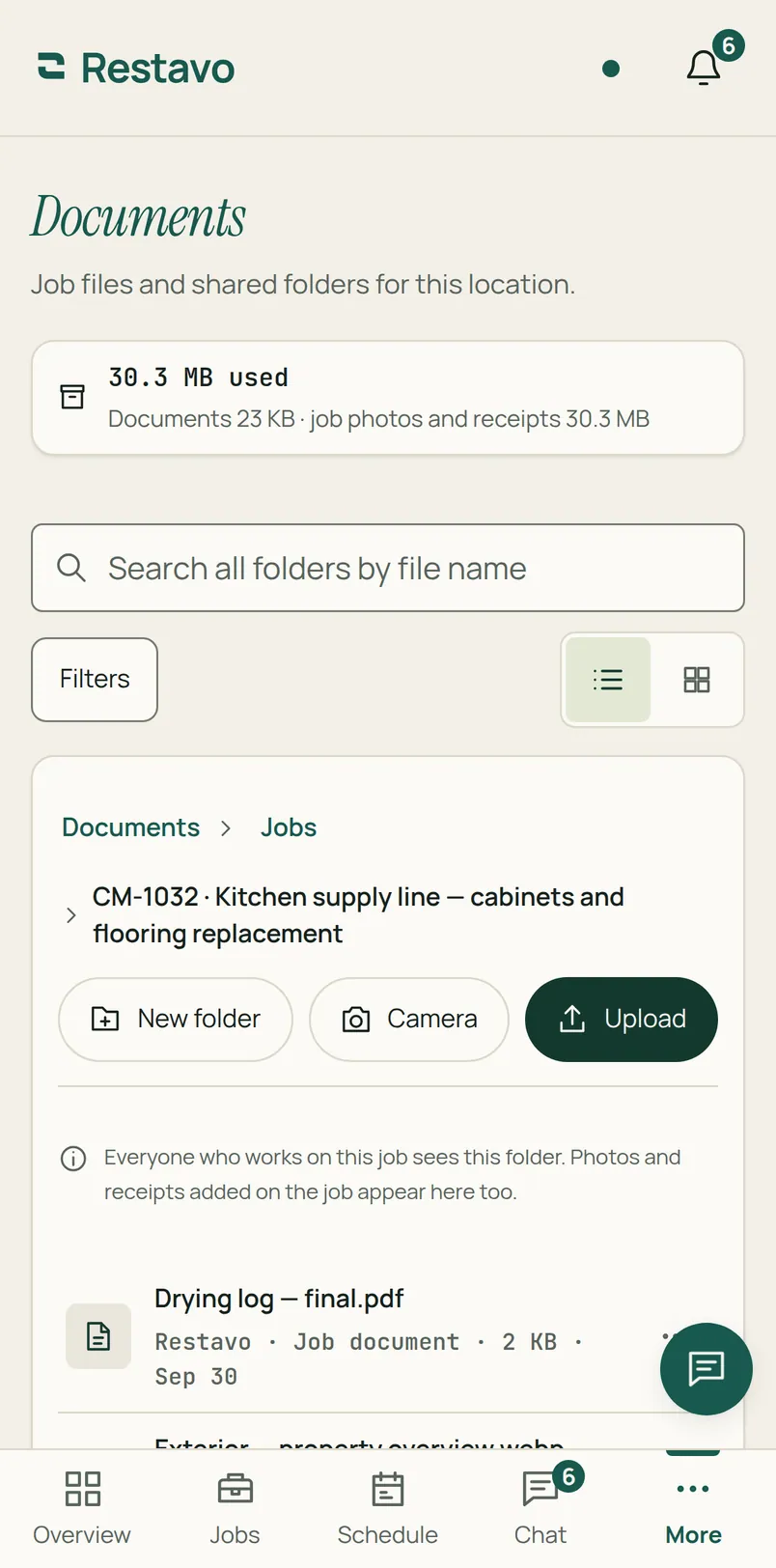
CM-1032 · repair job photos and documents
Who gets what
What each person gets from it.
- 01
The owner
The evidence for every loss filed with the job, ready when a customer or adjuster has a question.
- 02
The office
A folder for every job inside the location's drive, with photos and PDFs you can open where you work.
- 03
The crew
Upload photos and PDFs from the phone, tablet or laptop in hand.
Questions owners ask
Documents, in short.
Where do job photos go?
Into the job's own folder. Job folders sit inside the location's document drive, so company paperwork stays apart from the photos and reports for a single loss.
Can I open a file without downloading it?
Yes. Uploaded photos and PDFs preview in Restavo, next to the job's other evidence.
Who can see HR files?
Restricted HR folders are limited to organization administrators and operations managers. Every uploaded file requires authorization.

A walkthrough for your restoration business
See it with your work in mind.
Tell us about your locations, crews and the handoffs that take the most follow-up. We'll walk through the relevant jobs, visits and records in Restavo.
Book a demo Email us